Your FileZilla Pro subscription is time-limited, so it needs to be renewed to keep you on the latest versions and to keep your access to support from our team. From the next release after FileZilla Pro 3.71.1, you will be able to do this from inside the application: you can enter a new registration key before your current subscription expires, so there is no gap, no reinstalling and no need to register again from scratch.
Which Version Do I Need?
The Extend subscription feature will be available in the releases after FileZilla Pro 3.71.1. If you are running 3.71.1 or an earlier version, update when the next release is out; see how to update FileZilla Pro. You can check your current version under Help > About.
Renewing does not change your sites or settings. It only extends the validity of your subscription.
Why You Should Keep FileZilla Pro Up to Date
Besides unlocking this feature, running a recent build means you get the fixes released since your version, including security fixes, and the latest connection and compatibility improvements. If something stops working right after an update, our troubleshooting checklist covers the most common causes.
The Expiry Reminder
When your subscription is about to expire, FileZilla Pro shows a subscription expiring soon notice with the expiry date. If you have already purchased a new subscription, choose Extend now to go straight to the extension dialog described below, or choose Remind me tomorrow to be asked again later.
How to Extend Your Subscription
- Open FileZilla Pro.
- Select Extend subscription… from the Help menu. (If you saw the expiry reminder, Extend now opens the same dialog.)
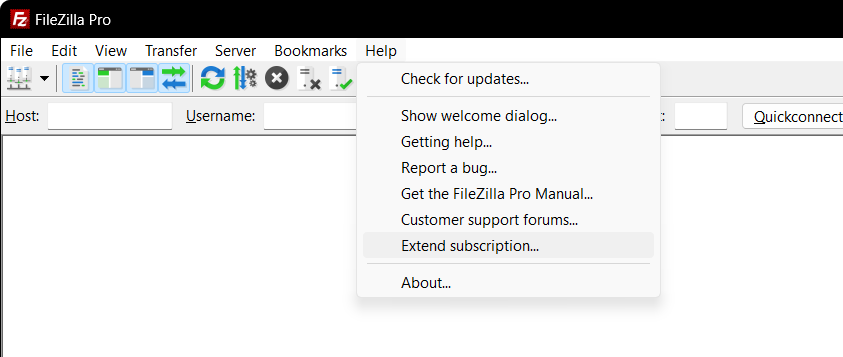
- In the Extend FileZilla Pro subscription dialog, enter your previous registration key. By default the extension goes through the internet, so make sure FileZilla Pro has access to it. To extend without an internet connection, click Switch to offline subscription extension instead (see the last step).
- Choose how you want to extend:
- Extend using registration key: select this if you have received a new registration key, and enter it in the Registration key field.
- Extend using purchase details: select this if you don’t have a registration key, and enter the e-mail address you used to purchase FileZilla Pro and your order number. You can find the order number in the confirmation e-mail we sent after your purchase.
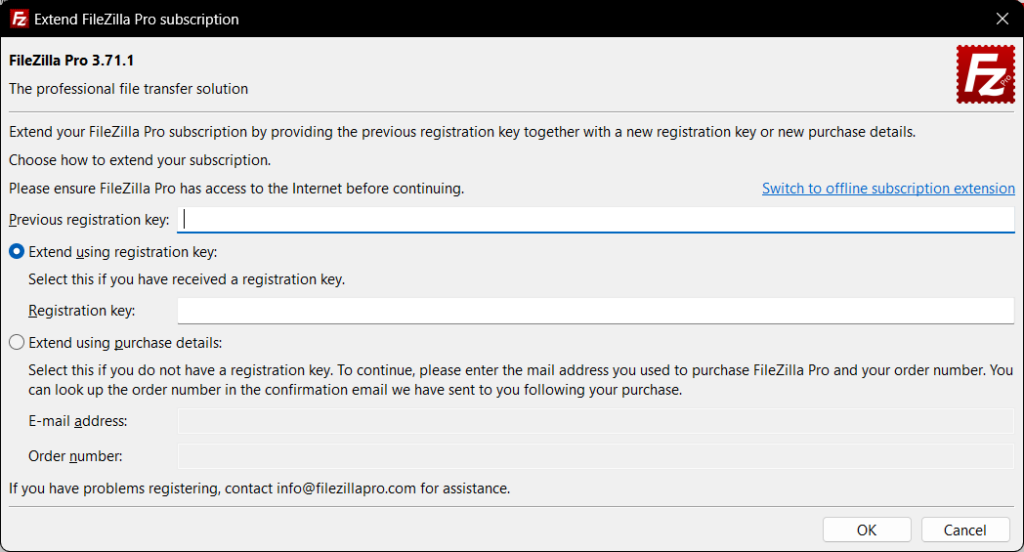
- Click OK. If the information you entered is correct, your subscription validity has been extended. If you run into an issue, check that the previous registration key and the new registration key, or your purchase details, were entered correctly. If the problem persists, contact info@filezillapro.com.
- If you need to extend the subscription offline, for example behind a firewall that blocks FileZilla Pro or on a computer without internet access, click Switch to offline subscription extension, create an offline subscription validity request, submit it on our website, and then enter the confirmation code you receive. This works the same way as offline registration.
Note: If your FileZilla Pro subscription has already expired, purchase a new subscription and register it with the new registration key, as described in FileZilla Pro setup, registration and deregistration.
If you use FileZilla Pro on more than one computer, see how many support plans you need.