Managing your Drive Google files doesn’t have to be limited to a web browser. With FileZilla Pro, you can treat your G Drive like a local hard drive, enabling fast transfers, advanced file sharing, and custom document exporting.
This guide provides a complete overview of how to master your Google Drive integration.
1. How to Connect to Your G Drive
To start transferring files to Drive Google, you first need to establish a secure connection.
-
Open Site Manager: Click on File > Site Manager (or
Ctrl+S). -
Create New Site: Click New Site and name it “My G Drive.”
-
Select Protocol: Choose Google Drive from the Protocol drop-down menu.
-
Authenticate: Click Connect. FileZilla Pro will open a secure window in your default browser.
-
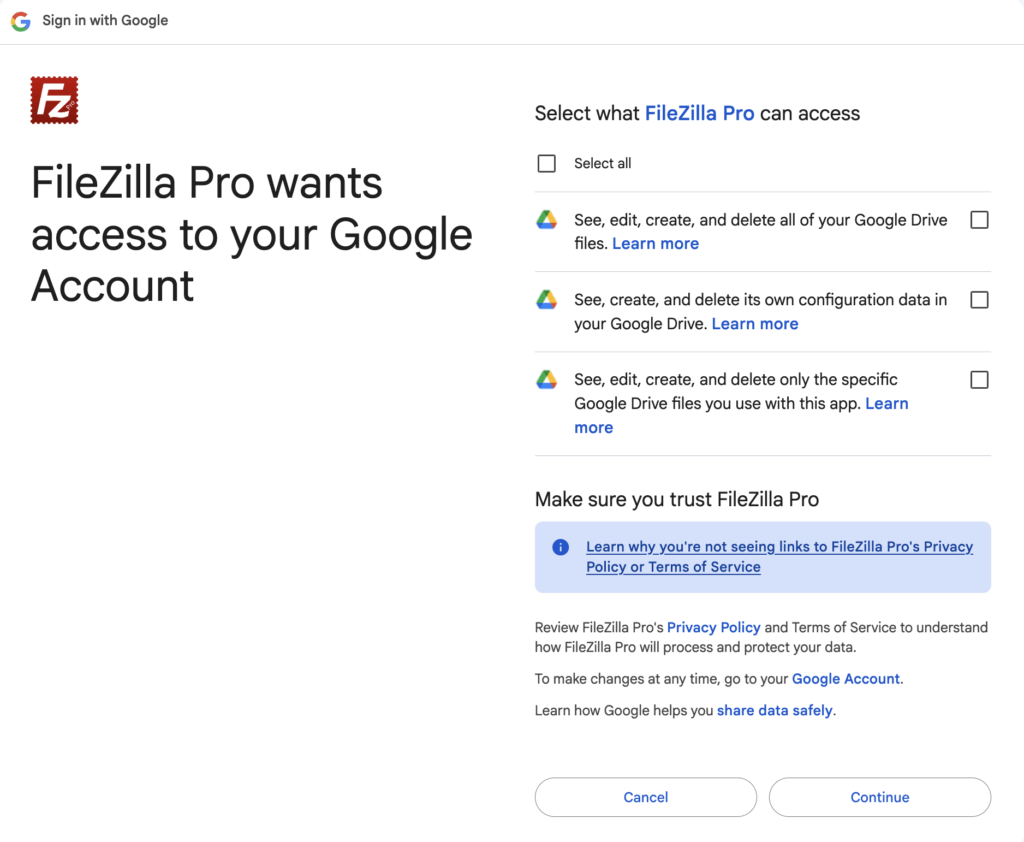
Authorize: Log in to your Google account and grant FileZilla Pro permission to access your files.
-
Pro Tip: If you use a Master Password in FileZilla Pro, your access token is saved securely so you won’t need to log in via browser every time.
-
Once connected, you will see three main directories:
-
My Drive: Your personal files.
-
Shared with Me: Files others have shared with you.
-
Shared Drives: Enterprise or Team drives (if applicable to your Workspace account).
2. Advanced Sharing Directly from FileZilla Pro
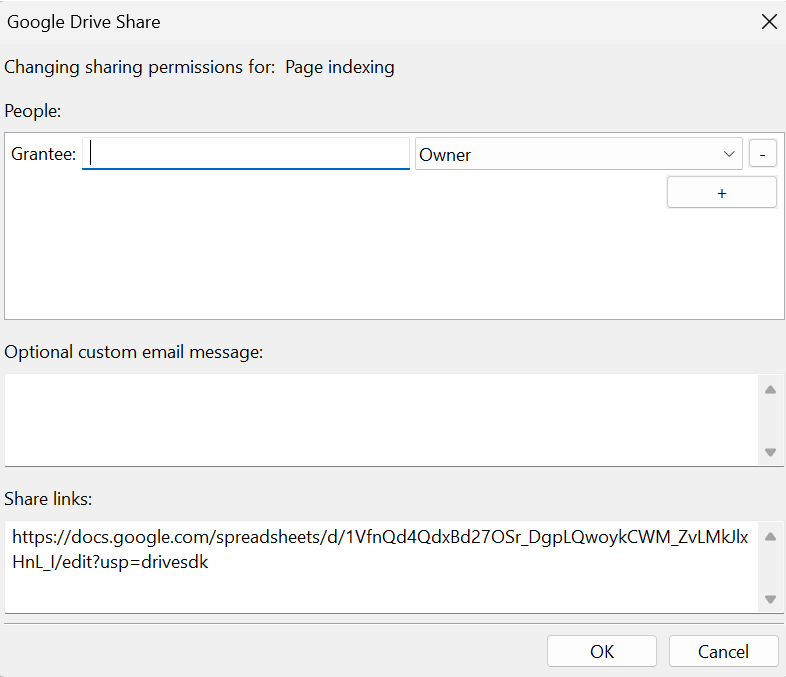
You don’t need to leave the app to manage permissions on G Drive. You can share files or entire folders directly from the remote pane.
-
Select & Right-Click: Choose the file or folder on your Drive Google and select Share.
-
Add Permissions: Click the + button to add a new user or group.
-
Set Roles: Choose the access level:
-
Owner: Full control (only for users).
-
Edit: Grantee can modify files.
-
View/Comment: Restricted access for reviewers.
-
-
Notify: You can add a custom message that Google will email to the recipients automatically.
3. Mastering Google Documents Download (Exporting)
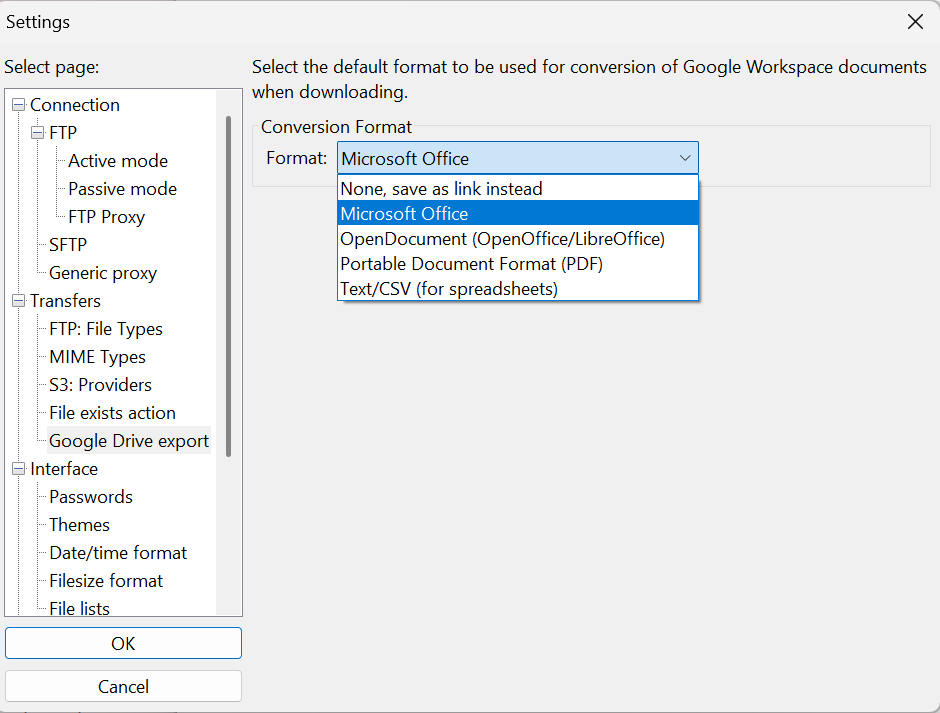
One common issue with G Drive is that Google-native files (Docs, Sheets, Slides) don’t exist as standard files (like .docx or .pdf). FileZilla Pro solves this by letting you choose your preferred export format.
Set Global Export Preferences:
Go to Edit > Settings > Google Drive export. Here you can set the default format for every download:
-
Microsoft Office: .docx, .xlsx, .pptx
-
OpenDocument: .odt, .ods, .odp
-
Portable Document Format: .pdf
-
Text/CSV: .txt or .csv for data-heavy sheets.
Individual “Export As”:
If you only need a specific file in a different format (e.g., a spreadsheet as a PDF), right-click the file in the remote pane and select Export As. This allows you to override your global settings for that specific transfer.
Why use FileZilla Pro for G Drive?
While the standard web interface is fine for a few files, FileZilla Pro is built for power users. Whether you are migrating thousands of files to Drive Google, managing complex permissions, or needing to bulk-download Workspace docs in Office formats, FileZilla Pro provides the speed and reliability that a browser cannot match.
The video tutorial below shows how to connect to G Drive, share G Drive files and download Google Document.
Video tutorial: All-in-one Google Drive
`