If your server operates behind a corporate firewall or in an air-gapped environment where internet access is restricted or unavailable, you can still renew your FileZilla Pro Enterprise Server (FZPES) subscription using the offline renewal workflow. This process involves generating a renewal request on the server machine, submitting it from any internet-connected device, and entering the resulting confirmation code back into the server.
Prerequisites
Before starting, make sure you have:
- Your new registration key or the email address and order number used to purchase the renewed subscription.
- Access to a second device (phone, laptop, etc.) with internet connectivity to submit the request to the FileZilla licensing portal.
- The FileZilla Pro Enterprise Server Administration Interface open and connected to your server.
Phase 1 — Open the Subscription Extension Dialog
-
Open the FileZilla Pro Enterprise Server Administration Interface and connect to your server by clicking on Connect to Server….

From the menu bar, select Server → Extend subscription.

When prompted to choose how you want to extend your subscription, select Create the request for offline registration.
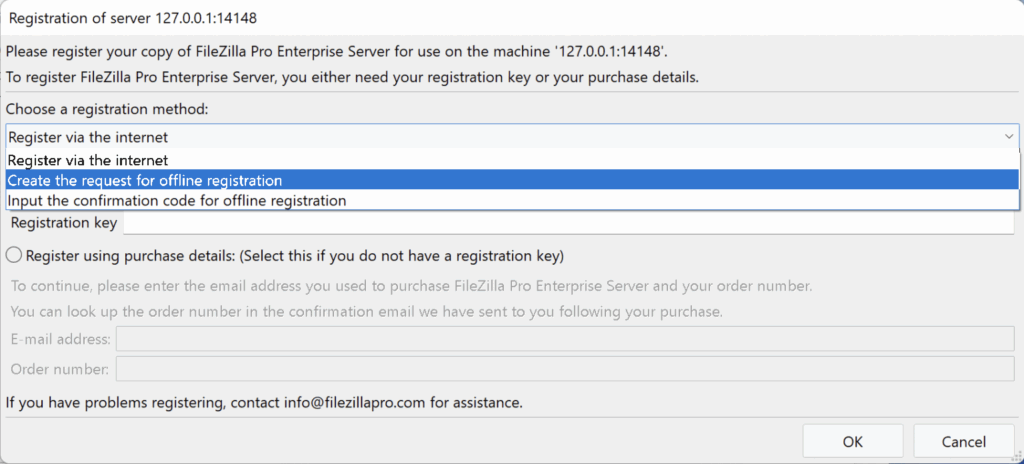
Choose whether you want to extend using a registration key or by entering your purchase details (email address and order number), then click OK. If you already have a confirmation code from a recently generated offline request, you can skip the request creation.
Phase 2 — Generate and Submit the Offline Request
-
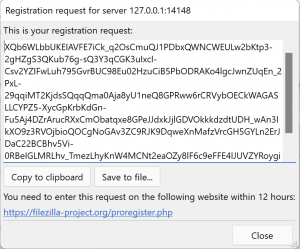
The dialog will display an offline subscription renewal request — a block of encoded text unique to your installation. Use one of the following options to preserve it:
- Copy to clipboard — paste it into a text file or email.
- Save to file — write it to removable media (USB drive) you can transfer to an internet-connected device.
-
On an internet-connected device, open a browser and go to:
https://registration.filezillapro.com/This is the same licensing portal used for offline registration. It handles both first-time registrations and subscription renewals.
-
Enter your renewal request using one of these methods:
- Paste the request text directly into the field.
- Click Browse to upload the file you saved in the previous step.
-
Click Submit registration request. If the request is valid, the portal will generate a confirmation code.
Save the confirmation code using one of these methods:
- Copy it to paste into the server machine.
- Save it to a file for transfer via removable media.
Phase 3 — Enter the Confirmation Code
-
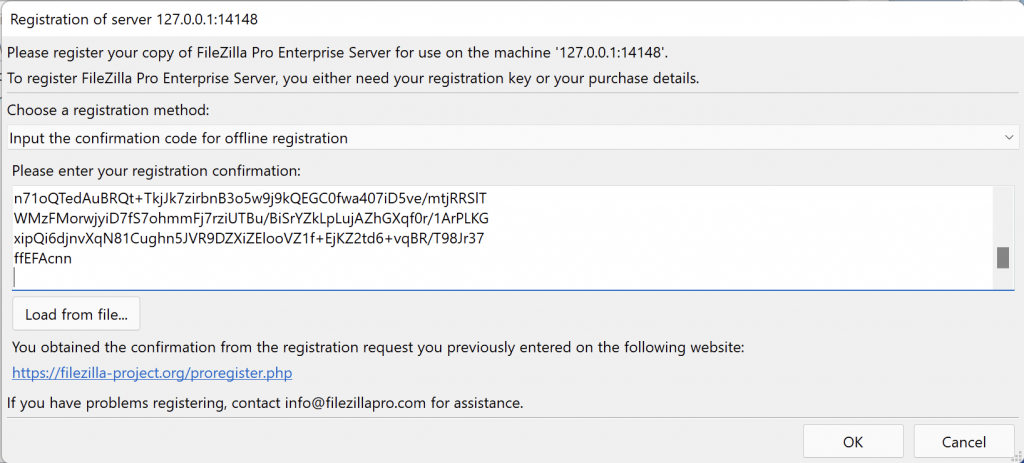
Return to the server machine. In the Administration Interface, the Enter confirmation code dialog should still be open. If you closed it, repeat Phase 1 steps 1–3 and click Skip request creation and input confirmation code.
-
Enter the confirmation code using one of these methods:
- Paste it directly into the confirmation code field.
- Click Load from file and select the file containing the code.
-
Click OK. If the code is valid and has not expired, the interface will confirm that your subscription has been successfully extended.
Success: Your subscription validity has been extended. No restart or reconfiguration of the server is required.
Troubleshooting
The confirmation code is rejected
Confirmation codes expire after 12 hours. If your code has expired, restart from Phase 1 to generate a fresh request and a new confirmation code.
The licensing portal rejects my renewal request
Ensure you entered the correct registration key or the exact email address and order number associated with your purchase. Even a single character mismatch will cause the request to fail.
My subscription has already expired
If your subscription expired, purchase a new subscription from the FileZilla Pro Store page and follow the offline renewal steps. The new license will apply to your existing installation and inherit all previous configurations without requiring reconfiguration.
Tags: Account Management, Billing, Customer Portal, Enterprise Licensing, Enterprise Server License, enterprise server renewal guide, Expiration, FileZilla Pro, FileZilla Pro Enterprise Server, FileZilla Pro licensing, FileZilla subscription renewal, how to renew FileZilla Pro Enterprise Server, Invoice, License Key, License Renewal, Maintenance Renewal, Payment, Pro Enterprise Server, renew enterprise server license, Renew Subscription, Renewal Process, Server Subscription, Subscription Management, Subscription Renewal, Upgrade & Renewal