The Web Client lets users reach their files from any web browser, and the REST API lets applications
automate file operations on the server. Both are served over HTTPS, so all traffic between the browser or
API client and the server is encrypted with TLS. This article applies to FileZilla Pro Enterprise Server 1.23
and FileZilla Server 1.16.
Step 1: Enable the Listener
The Web Client & REST API (HTTPS) listener is preconfigured on port 443, for IPv4 and IPv6, and is
disabled by default. Check its box in the Server listeners panel to make it available. To use another
address or port, click Add, select Web Client & REST API (HTTPS) in the Protocol column, and enter the
address and port.
Step 2: Configure Connection Security
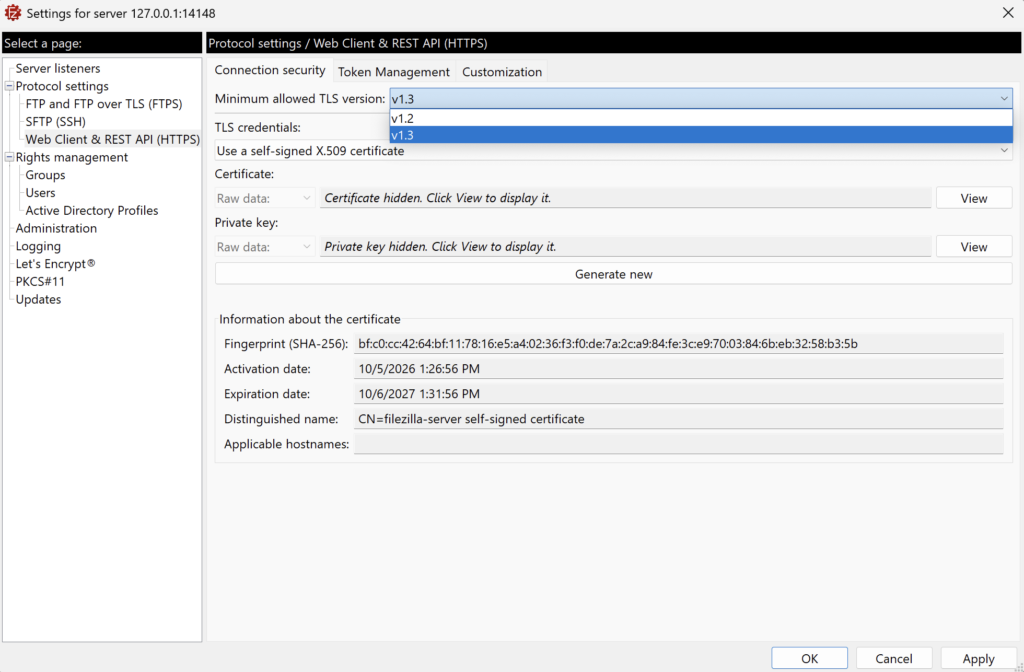
Go to Protocol settings › Web Client & REST API (HTTPS) ›
Connection Security.
- Minimum allowed TLS version: the default is TLS 1.3. Browsers and tools that support
only older versions will not be able to connect. - TLS credentials: provide an X.509 certificate and private key, use a self-signed
certificate, or use a Let’s Encrypt certificate.
Note: browsers show a security warning for self-signed certificates. If people outside
your organization will use the Web Client, use a Let’s Encrypt certificate or a certificate from a trusted
Certificate Authority.
Step 3: Set Token Lifetimes
When a user signs in through a browser, or an application authenticates to the REST API, the server issues
two tokens:
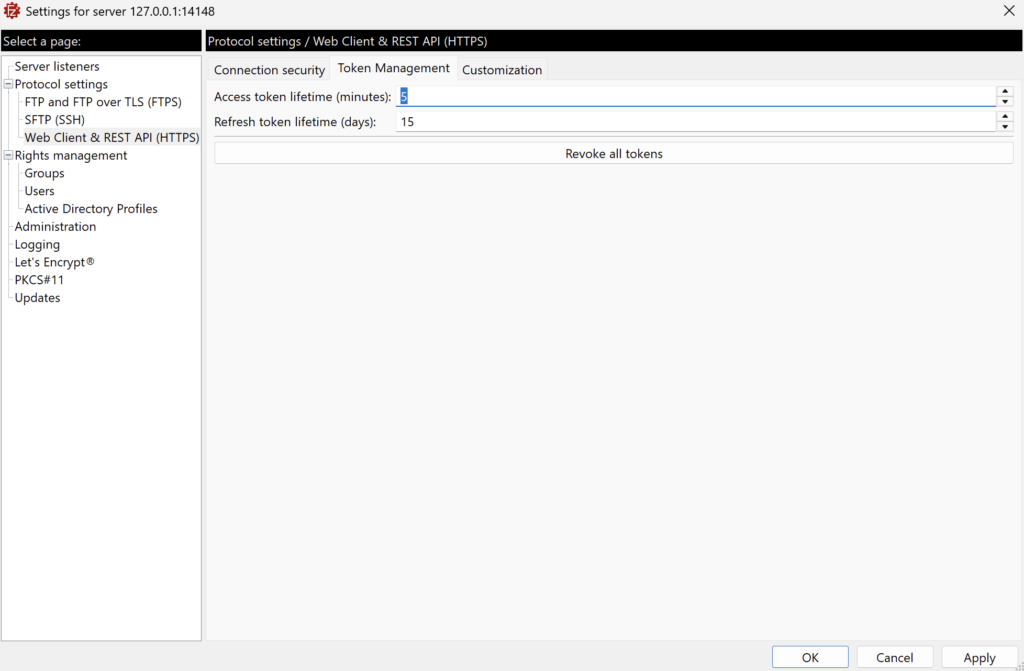
- Access token: short-lived, sent with every request. Default: 5 minutes.
- Refresh token: used to obtain a new access token without signing in again. Default:
15 days. When it expires, users must sign in again.
Shorter lifetimes reduce the time a stolen token can be misused, at the cost of more frequent sign-ins.
Configure both under Token Management.
Revoking Tokens
Click Revoke all tokens to invalidate every access and refresh token issued so far, for
example if you suspect a token has been compromised. Revocation also invalidates all public share links, so
users must create new ones. Users and API clients must sign in again. Pages already open in a browser are
not necessarily closed or redirected immediately.
Step 4: Customize the Web Client
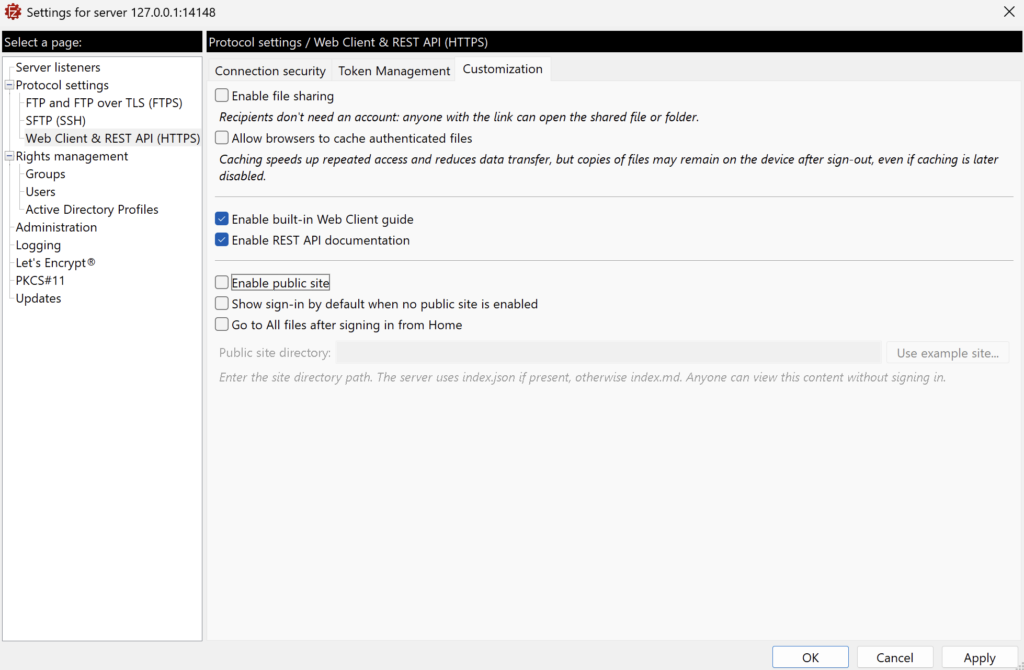
Go to Protocol settings › Web Client & REST API (HTTPS) ›
Customization. The available options are:
- Enable file sharing (disabled by default): turns public file sharing on or off for the
whole server. When it is off, no user can share files publicly, whatever the user or group settings say.
When it is on, each user’s or group’s settings decide who can share (see the Rights Management
article). - Allow browsers to cache authenticated files (disabled by default): faster repeat access
and less data transfer. Copies may remain on the device after sign-out, so keep this off on shared or
public computers. - Enable built-in Web Client guide (enabled by default): shows the user guide inside the
Web Client. - Enable REST API documentation (enabled by default): publishes the API documentation.
Consider disabling it on servers exposed to the internet. - Enable public site (disabled by default): serves the content of one directory to anyone,
without signing in. See the next section.
Click Apply or OK at the bottom of the settings dialog to save your changes.
Optional: Publish a Public Site
Enter the absolute native path of the directory in the Public site directory field. If the
directory contains an index.json file, the server uses it. If it contains only
index.md, the server uses that instead. If both are present, index.json takes
precedence.
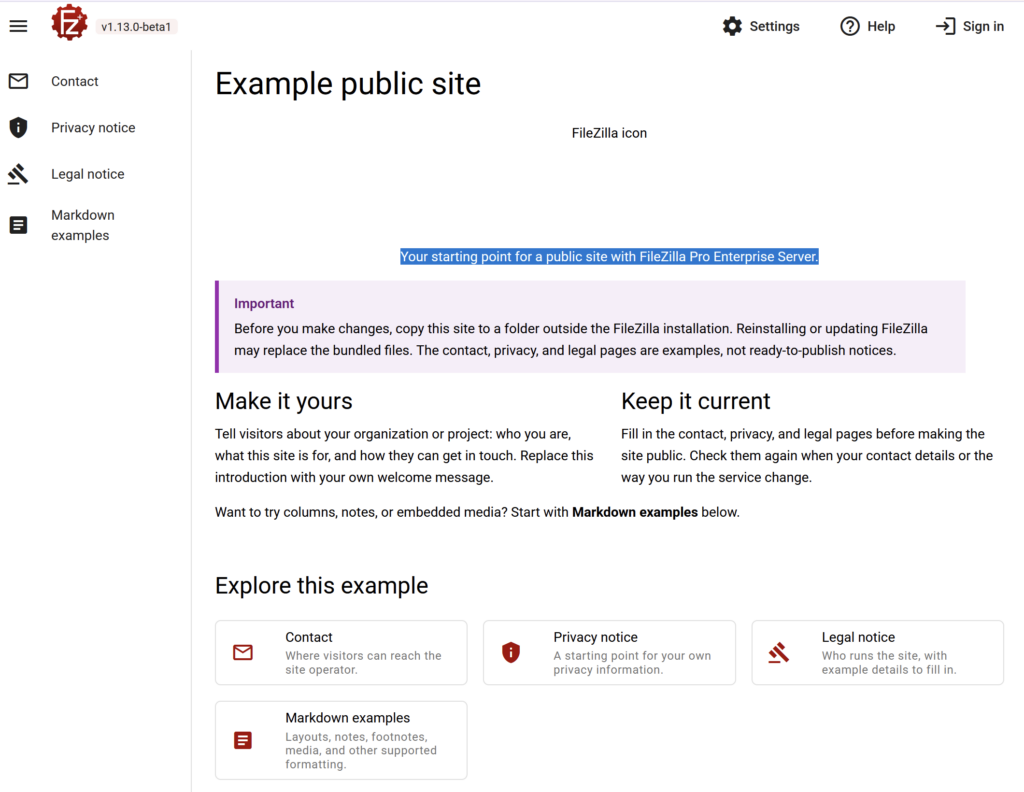
To explore the feature, click Use example site. This only fills in the directory path with the bundled example, it copies nothing. To customize the example, first copy its directory somewhere else and point the Public site directory at the copy. Do not edit the bundled copy, because updates may replace it.
Warning: everything in the public site directory is accessible to anyone, including people who
are not signed in. Do not store sensitive or confidential files there.
Upgrade
Go beyond FileZilla Server with FileZilla Pro Enterprise Server
Everything in FileZilla Server, plus the features organizations use to secure and centralize their transfers. The license covers unlimited users on each server.
Secure file transfer over SSH, alongside FTP and FTPS.
Passwords plus a one-time code from an authenticator app. Available in FileZilla Pro Enterprise Server only.
Key-based logins for SFTP users, with more than one key per user.
Existing directory accounts sign in directly, and AD attributes can set mount points and groups.