Nextcloud Files is a cloud storage solution that forms part of the Nextcloud ecosystem.
To learn more about it, visit Nextcloud Files.
Before connecting, ensure you have the following:
- Nextcloud account details: username and password
- Connection information:
- host address
- port (optional)
To configure RemoteDrive to connect to Nextcloud Files, follow these steps:
-
Open RemoteDrive: Click on the RemoteDrive icon located in the top menu bar to open the app.
-
Add a Server: Click on +Add server.
-
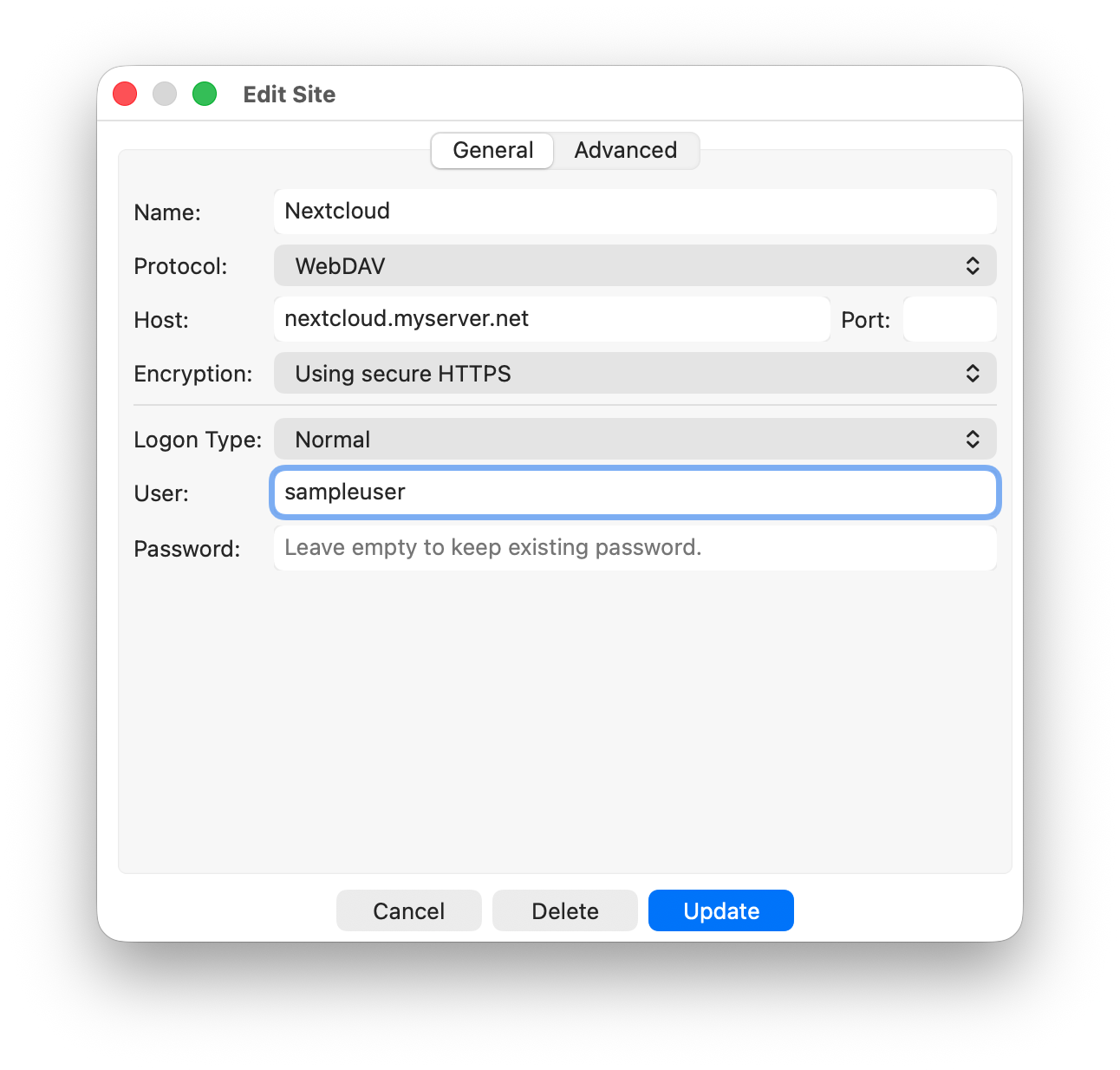
Choose Connection Type: From the drop-down menu select WebDAV.
-
Label Your Connection: In the Name field, enter a label for your connection (e.g., Nextcloud).
-
Configure Connection Details:
- Enter the host name in the Host field.
- If available, enter the port in the Port field.
-
Select Using secure HTTPS if the server supports encrypted connections,
or Using insecure HTTP if HTTPS is not available.
Note: Using HTTP means credentials are transmitted in clear-text over the network, which is not recommended.
-
Set Credentials:
- Enter the username in the User field.
- Enter the password in the Password field.
-
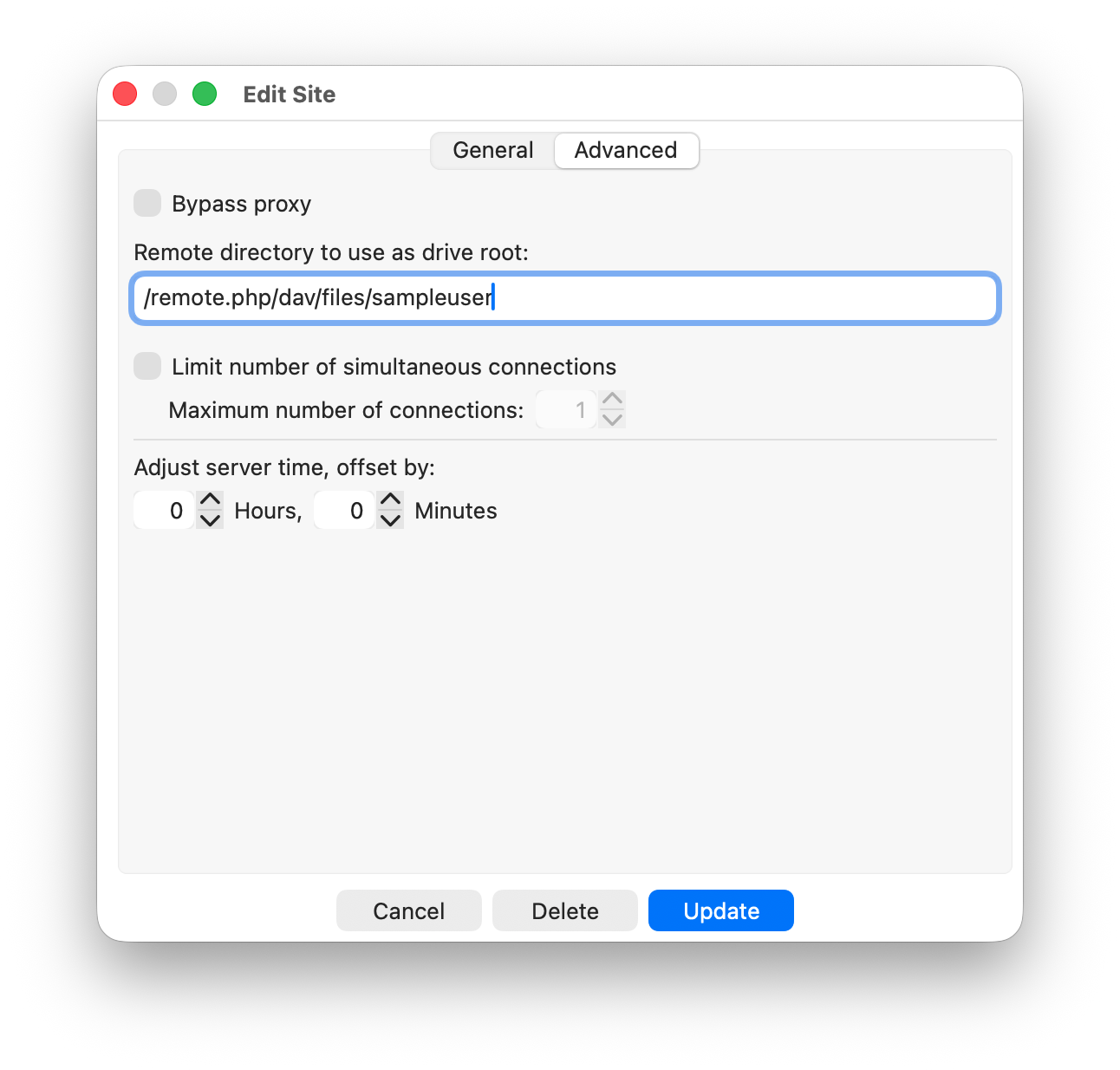
Set the Remote Directory: Click on the Advanced tab and enter the following
in the Remote directory to use as drive root field:/remote.php/dav/files/USERNAME/Replace USERNAME with your actual Nextcloud username.
-
Click Add & Connect to establish the connection.
Once connected, Nextcloud will appear as a mounted drive in Finder under the
Locations section, giving you direct access to your files and folders.
Related Topics: