To connect to an SFTP server with a private key in FileZilla, open Site Manager, set the Logon Type to “Key file,” and browse to your private key. FileZilla will prompt you to convert the key to its required format if needed, ask for a passphrase if the key has one, and then log you in without a password. This works the same way in the free FileZilla client and FileZilla Pro — SFTP key authentication isn’t a Pro-only feature.
What you need before you start
Before connecting, make sure you have:
- A private key file (usually named something like
id_rsa,id_ed25519, or a.ppkfile if it was generated with PuTTY) - The server’s hostname or IP address, the SFTP port (usually 22), and your username
- The key’s passphrase, if one was set when the key was created
- Confirmation that the matching public key is already installed on the server — FileZilla is the client half of this; it doesn’t add your key to the server for you
If you’re the one setting up the server side of key authentication rather than just connecting to an existing server, see how to set up SFTP public key authentication in FileZilla Pro Enterprise Server instead.
How to connect to one site with a private key (Site Manager)
This is the most common approach — it saves the key against a single saved connection.
- Open File > Site Manager (or click the Site Manager icon).
- Click New Site and give it a name.
- Set Protocol to SFTP – SSH File Transfer Protocol.
- Enter the Host and Port (leave Port blank to use the default, 22).
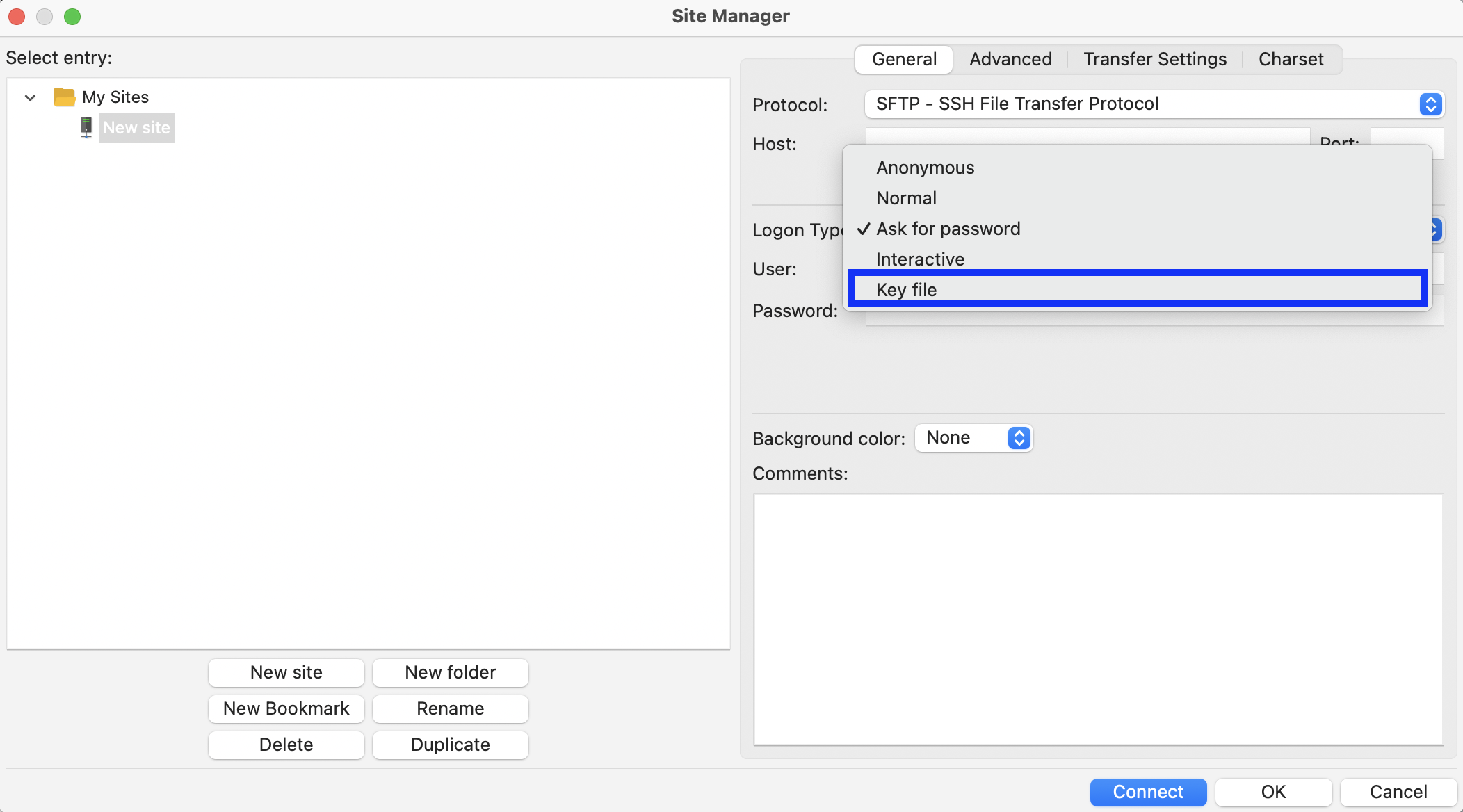
- Set Logon Type to Key file.
- Enter your User name.
- Click the browse (…) button next to the key file field and select your private key.
- Click Connect. If the key has a passphrase, FileZilla will prompt for it once per session.
How to add a key for all connections (global SFTP settings)
If you connect to several servers that all trust the same key, add it once instead of repeating the steps above for every site.
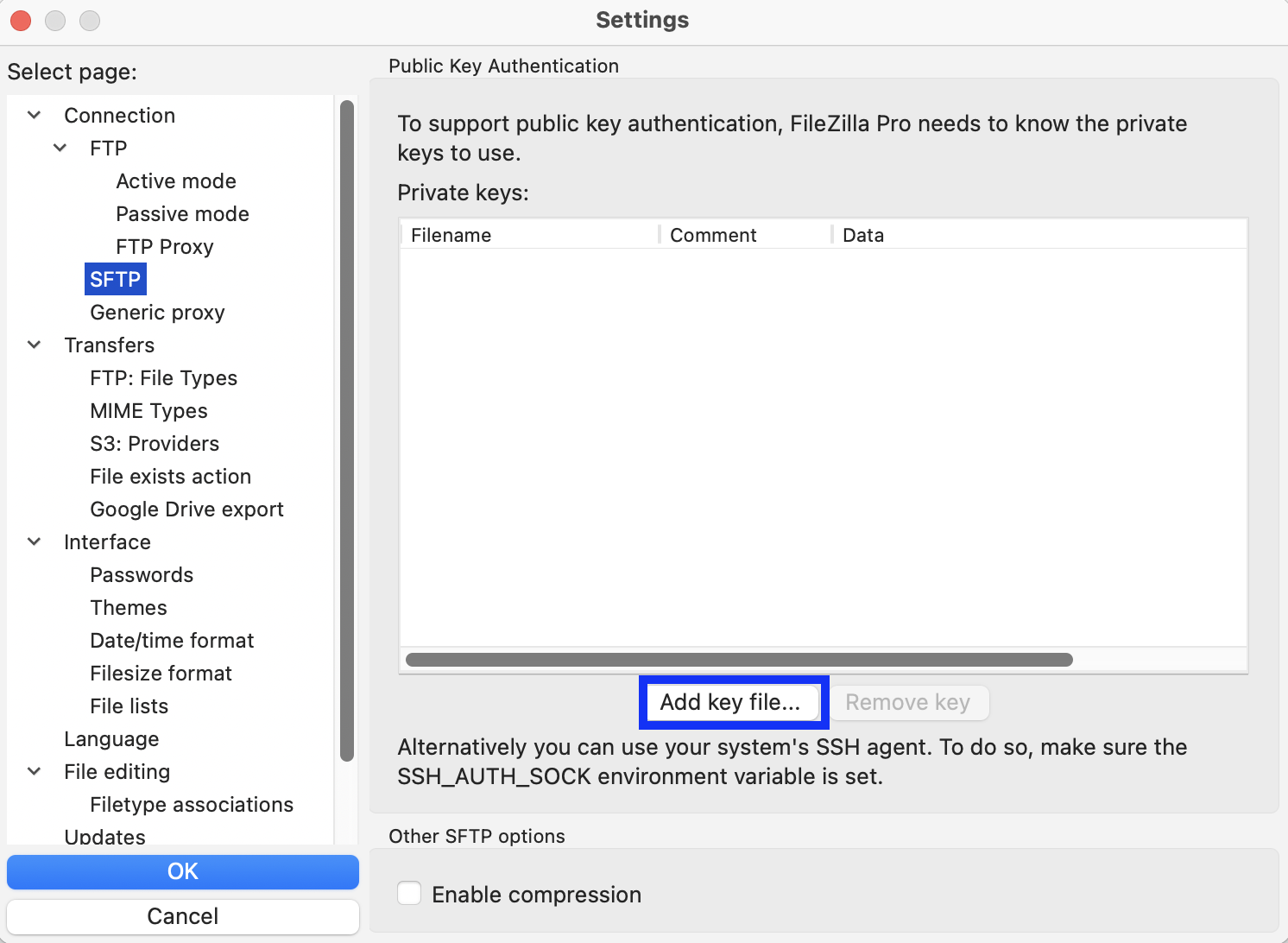
- Go to Edit > Settings > Connection > SFTP.
- Click Add keyfile and select your private key.
- FileZilla adds it to the list of keys it will offer automatically to any SFTP server that accepts it — no per-site configuration needed.
Converting an OpenSSH key to FileZilla’s format
FileZilla’s SFTP engine expects keys in PuTTY’s .ppk format. If you select a key generated with ssh-keygen (the common OpenSSH format, e.g. id_rsa or id_ed25519 with no extension), FileZilla detects this and offers to convert it for you the first time you use it. Accept the conversion and save the resulting .ppk file — keep your original key as a backup. You only need to do this once per key.
What if my key needs a passphrase?
A passphrase protects the private key file itself and is separate from any server password. If your key was created with a passphrase, FileZilla asks for it when you connect (or when you first use the key, if it’s cached for the session). Enter it once per session — FileZilla does not store it permanently unless you’re using an SSH agent outside FileZilla to hold it.
Troubleshooting common key authentication errors
- “Server refused our key” or “Authentication failed”
- The public half of your key isn’t installed on the server, or is installed for a different username. Confirm with whoever manages the server that your public key is in the correct account’s authorized-keys list.
- “Couldn’t load private key”
- The key is in a format FileZilla can’t read directly (see the conversion step above), or the file is corrupted. Re-export the key or regenerate it if conversion doesn’t resolve this.
- Connection prompts for a password instead of using the key
- Check that Logon Type is set to Key file in Site Manager, not Normal or Ask for password — and that the key file path shown is still correct if you moved the file.
Frequently asked questions
Can I use a private key with the free FileZilla client, or is this a Pro-only feature?
Both. SFTP key authentication is available in the free FileZilla client as well as FileZilla Pro — it is not a Pro-exclusive feature.
What key formats does FileZilla support?
FileZilla natively uses PuTTY’s .ppk format. Keys generated in the common OpenSSH format (as produced by ssh-keygen) are detected automatically and can be converted to .ppk the first time you select them.
Do I still need a password if I’m using a key?
Usually not for the server login itself — that’s the point of key authentication. You may still be prompted for your key’s passphrase, which protects the key file locally and is unrelated to any server-side password.
Already using SFTP? Add cloud storage to the mix
FileZilla Pro keeps every SFTP connection you already rely on and layers Amazon S3, Google Drive, Dropbox, and more onto the same interface — no extra software, no separate client to learn.