SFTP (SSH File Transfer Protocol) is a protocol for securely transferring and managing files over a network using a protected connection, most commonly SSH. Authentication, file management commands, directory listings, and the files themselves travel through the encrypted SSH connection, protecting them from eavesdropping or modification in transit.
Despite the name, SFTP is not FTP made secure. It is not FTP with an “S” added to it, and it is not another name for FTPS. SFTP was designed independently as a file transfer and remote file system protocol associated with SSH. It solves many of the same problems as FTP, but does so with a very different architecture.
Why SFTP is not “secure FTP”
The names make the relationship look much closer than it really is.
FTP has roots going all the way back to the ARPANET. File transfer mechanisms were already being discussed in 1971, and after numerous revisions the protocol eventually became the FTP described by RFC 959 in 1985. Its architecture reflects that history: FTP maintains a control connection for commands and replies and creates a separate data connection for directory listings and file transfers.
SFTP came from a completely different family tree. It was developed as part of the Secure Shell (SSH) ecosystem. Rather than modifying FTP, its designers created a binary request/response protocol for manipulating a remote file system over a secure communications channel.
In fact, the early SFTP specification describes its purpose as more than simply transferring files: it was designed to provide general remote file system access and potentially serve as the basis for a secure remote file system service.
So, despite their names:
- FTP = File Transfer Protocol
- FTPS = FTP secured with TLS
- SFTP = SSH File Transfer Protocol
Think of FTP and FTPS as members of the same family. SFTP is the neighbor who happens to have a very similar name.
How SFTP actually works
An SFTP session normally begins as an SSH connection, using TCP port 22 by default.
SSH first establishes the secure transport. The client verifies the server’s host key, cryptographic algorithms are negotiated, an encrypted channel is established, and the user authenticates. Authentication can use a password, a public/private key pair, or other mechanisms supported by the SSH server.
Once SSH has authenticated the user, the client requests the SFTP subsystem. SSH explicitly defines the concept of subsystems: predefined services that can operate over an SSH channel. The SSH Connection Protocol, standardized in RFC 4254, even anticipated a general purpose file transfer mechanism as one of the services that could use this facility.
SFTP then exchanges binary protocol messages through that SSH channel. Instead of FTP commands such as RETR, STOR, LIST, and PASV, SFTP uses operations such as:
SSH_FXP_OPEN— open a fileSSH_FXP_READ— read dataSSH_FXP_WRITE— write dataSSH_FXP_OPENDIRandSSH_FXP_READDIR— browse directoriesSSH_FXP_REMOVE— remove a fileSSH_FXP_MKDIR— create a directorySSH_FXP_RENAME— rename a fileSSH_FXP_STAT— retrieve file attributes
This is an important architectural difference. SFTP behaves in many respects more like a remote file system API transported over SSH than like traditional FTP.
One connection instead of two
The distinction becomes particularly obvious when looking at the network traffic.

With SFTP, the simplified model is:
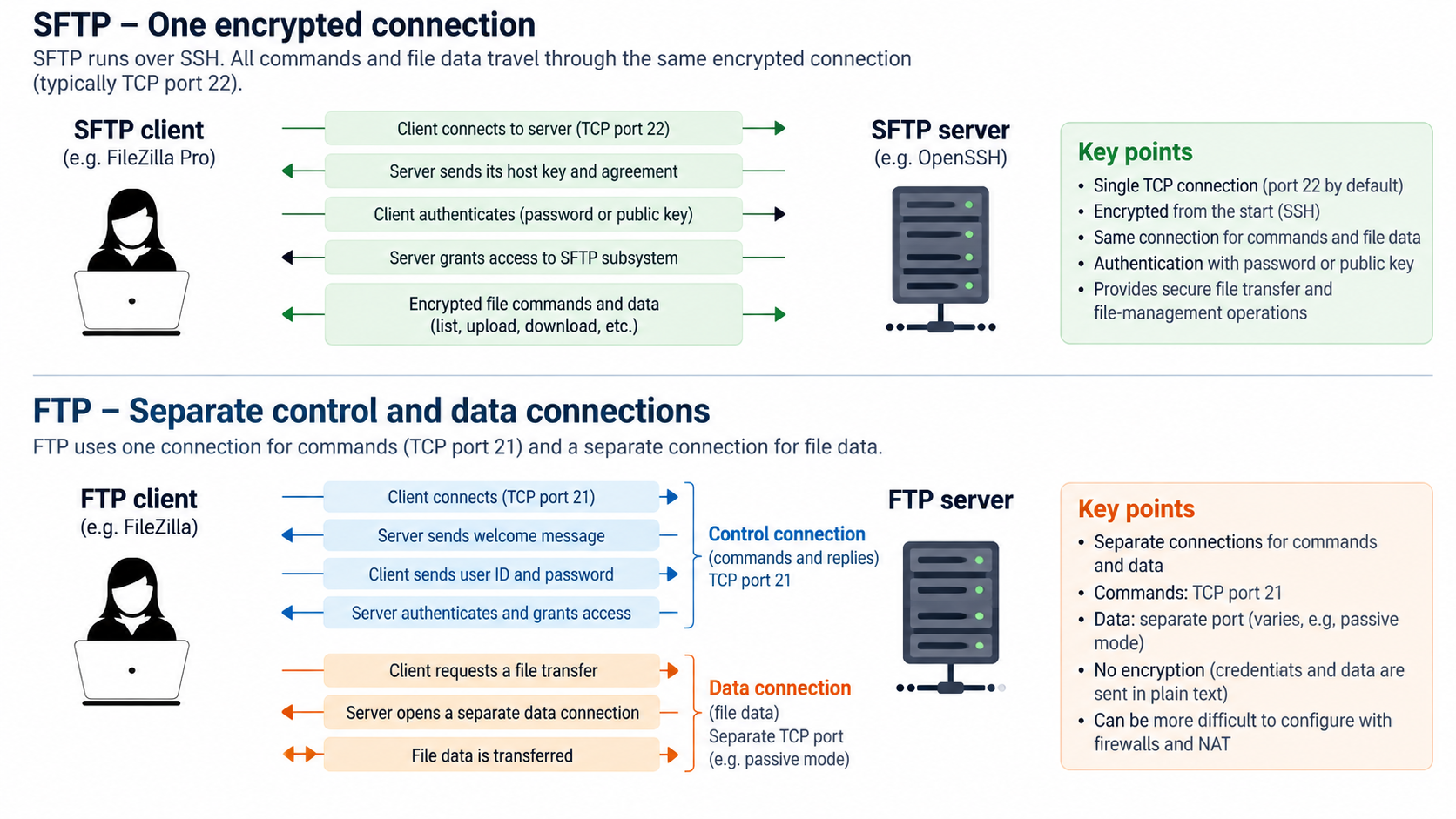
That second connection is one reason FTP can require additional consideration when NAT devices and firewalls are involved. Passive FTP commonly requires the server to expose a configured range of data ports in addition to the control connection.
SFTP normally avoids that particular complication because its protocol traffic is carried through the SSH connection.
What happens when you connect
A simplified SFTP connection looks like this:
- TCP connection: the client connects to the SSH server, normally on port 22.
- SSH negotiation: client and server negotiate SSH algorithms and establish encryption.
- Server verification: the client verifies the server’s SSH host key.
- User authentication: the user authenticates, for example with a password or SSH key.
- SFTP subsystem: the client requests the SFTP service through an SSH channel.
- SFTP version negotiation: client and server exchange SFTP protocol version information.
- File operations: directory listings, reads, writes, renames, deletes, and other operations are exchanged as SFTP messages.
An interesting standards story: SFTP is not an RFC
Here is one of the more surprising facts about SFTP: although SSH itself became an Internet standard, the SFTP protocol specification most implementations are based on never became an RFC.
SFTP evolved through a series of IETF Internet Drafts produced by the SECSH working group. An October 2001 draft specified SFTP version 3. Later drafts continued evolving the protocol through versions 4, 5, and 6, adding and refining concepts such as file attributes, ACLs, locking, extensions, and cross-platform semantics.
The final IETF SFTP draft, published in 2006, described versions 2 through 6 but ultimately expired rather than progressing to an RFC.
This helps explain an apparent oddity that administrators sometimes encounter today: two products can both truthfully advertise “SFTP support” while differing in some less common operations or extensions. SFTP version negotiation and vendor extensions have therefore played an important role in interoperability.
Version 3 became particularly widespread, and the protocol was deliberately designed with an extension mechanism. Clients and servers can advertise additional capabilities without redefining the basic protocol.
A protocol designed for parallelism
There is another less visible difference between FTP and SFTP.
SFTP requests contain request identifiers, and the protocol permits multiple requests to be outstanding at the same time. A client does not necessarily have to wait for one read request to complete before issuing the next one.
This allows implementations to pipeline operations and helps compensate for network latency, particularly on long distance connections. The SFTP protocol is therefore not simply a command prompt hidden inside an SSH tunnel; it is a structured binary protocol designed for programmatic file system operations.
And where does FTPS fit in?
FTPS took the opposite evolutionary route.
Rather than inventing a new file transfer protocol, FTPS preserved FTP and added TLS security to it. RFC 4217, published in 2005, specifies how an FTP client can request TLS protection using commands such as AUTH TLS and protect the data channel using PROT.
That means FTPS remains recognizably FTP underneath the encryption. It still uses FTP commands and retains FTP’s distinction between control and data connections.
SFTP does none of this. It does not understand USER, PASS, RETR, STOR, PASV, or AUTH TLS. An SFTP server is not an FTP server with encryption enabled.
SFTP vs. FTP vs. FTPS
| Feature | FTP | FTPS | SFTP |
|---|---|---|---|
| Protocol family | FTP | FTP | SSH |
| Encryption | No | TLS | Provided by SSH |
| Default port | 21 | 21 for explicit FTPS | 22 |
| Control and data | Separate connections | Separate connections | Same SSH connection |
| Typical authentication | Username/password | Username/password; TLS certificates may also be involved | Password, SSH public key, or other SSH methods |
| Firewall configuration | Control port + data connections | Control port + protected data connections | Usually one SSH port |
| Compatible with FTP servers? | Yes | Yes, if FTPS is supported | No |
Note: this comparison reflects FileZilla Pro’s protocol support. If you’re using the free FileZilla client instead, see FileZilla’s supported protocols for what’s available there.
What you need to connect to an SFTP server
- The server’s hostname or IP address
- The SSH/SFTP port, normally 22, unless the administrator changed it
- A username
- A password, private key, or another authentication method accepted by the server
- An SFTP client such as FileZilla or FileZilla Pro
In FileZilla, open File > Site Manager, create a new site, and select SFTP – SSH File Transfer Protocol as the protocol. Then enter the host, port, and authentication details supplied by the server administrator.
Do not skip the host-key check
Encryption alone is not enough if you do not know who is at the other end of the connection.
SSH servers identify themselves using a host key. When connecting to a server for the first time, an SFTP client can present the server’s host-key fingerprint for verification. Once trusted, a change in that key deserves attention: it may be perfectly legitimate, for example, because the server was rebuilt, but it can also indicate that the client is no longer talking to the server it expects.
For managed or automated environments, administrators should verify host-key fingerprints through a trusted channel rather than blindly accepting an unknown key.
Common questions about SFTP
Is SFTP the same as FTPS?
No. FTPS is FTP secured with TLS. SFTP is a different file transfer and remote file system protocol normally transported over SSH. The two protocols are not interchangeable.
Is SFTP just FTP through an SSH tunnel?
No. Although FTP can technically be tunneled through SSH in certain configurations, that does not turn FTP into SFTP. SFTP has its own binary messages, operations, version negotiation, and extension mechanism.
Does SFTP use port 21 or port 22?
SFTP normally uses port 22 because it is generally carried over SSH. Port 21 is the standard FTP control port. Neither protocol is technically restricted to its default port, however; administrators can configure services on different ports.
Does SFTP require an SSH shell account?
Not necessarily. A server can allow a user to access the SFTP subsystem while preventing that user from obtaining an interactive shell. This is a common configuration for accounts intended only for file transfer.
Is SFTP secure?
SFTP benefits from SSH’s encryption, integrity protection, server authentication, and supported user authentication mechanisms. Its practical security still depends on the SSH configuration: strong algorithms, proper host-key verification, secure credentials or keys, sensible access controls, and maintained server software all matter.
Does SFTP use certificates?
SFTP authentication is SSH authentication, not TLS authentication. SSH commonly uses passwords or public/private key pairs and can also support SSH certificates. These should not be confused with the X.509 TLS certificates commonly associated with HTTPS and FTPS.
Do I need FileZilla Pro to use SFTP?
No. SFTP is supported by the free FileZilla client as well as FileZilla Pro.
FileZilla Pro adds support for additional protocols and services, including Amazon S3, Google Drive, Microsoft OneDrive and Azure storage services, as well as additional tools such as FileZilla Pro CLI for automated and scripted transfers.
For a broader comparison, including FTP, FTPS, and SFTP, see FileZilla’s supported protocols: FTP, FTPS & SFTP.
Scaling Up? Meet FileZilla Pro Enterprise Server
For teams that have outgrown single-user file transfer, FileZilla Pro Enterprise Server centralizes secure managed file transfer across your whole organization — with no limit on the number of users. Active Directory integration streamlines access control, so admins can manage everyone from one place.