FTPS (FTP over TLS, sometimes called FTPES) is FTP with encryption added on top. Authentication and, depending on configuration, the data transfer itself travel over a TLS-protected connection, protecting them from eavesdropping or tampering in transit. Unlike SFTP, FTPS is not a separate protocol — it’s the same FTP defined in RFC 959, with TLS security layered on.
Why FTPS and SFTP are not the same thing, despite the similar names
FTPS took the conservative route: rather than inventing something new, it preserved FTP and added TLS to it. RFC 4217, published in 2005, specifies how an FTP client can request TLS protection using the AUTH TLS command, and protect the data channel using PROT.
That means FTPS remains recognizably FTP underneath the encryption. It still uses FTP commands like USER, PASS, RETR, STOR, and PASV, and it still keeps FTP’s separate control and data connections — TLS wraps around that existing architecture rather than replacing it.
SFTP does none of this. It’s a different protocol entirely, built on SSH, with its own binary messages and no relationship to FTP’s command set. So despite the names:
- FTP = File Transfer Protocol
- FTPS = FTP secured with TLS
- SFTP = SSH File Transfer Protocol, unrelated to FTP
Think of FTP and FTPS as the same family — FTPS is FTP wearing a TLS overcoat. SFTP is a different family altogether that happens to have a similar name.
Explicit FTPS vs. implicit FTPS
FTPS comes in two modes, and the difference matters for firewall and port configuration:
- Explicit FTPS (FTPES) — the client connects on the standard FTP port (21) as plain FTP, then explicitly requests TLS with the
AUTH TLScommand before authenticating. This is the modern, RFC 4217-standard approach, and what most current FTPS servers and clients (including FileZilla) use by default. - Implicit FTPS — TLS is negotiated immediately when the connection opens, before any FTP commands are exchanged, conventionally on port 990. There’s no unencrypted moment at all, but implicit mode predates RFC 4217, was never formally standardized, and is now considered legacy — supported mainly for compatibility with older servers.
If you’re setting up a new FTPS server today, explicit FTPS on port 21 is the standard choice.
How an FTPS connection actually works
A simplified explicit-FTPS connection looks like this:
- TCP connection: the client connects to the server, normally on port 21.
- AUTH TLS: the client requests TLS protection for the control connection.
- TLS handshake: the server presents its TLS certificate; the client verifies it and negotiates encryption.
- Authentication: username and password (or a client certificate) are exchanged over the now-encrypted control connection.
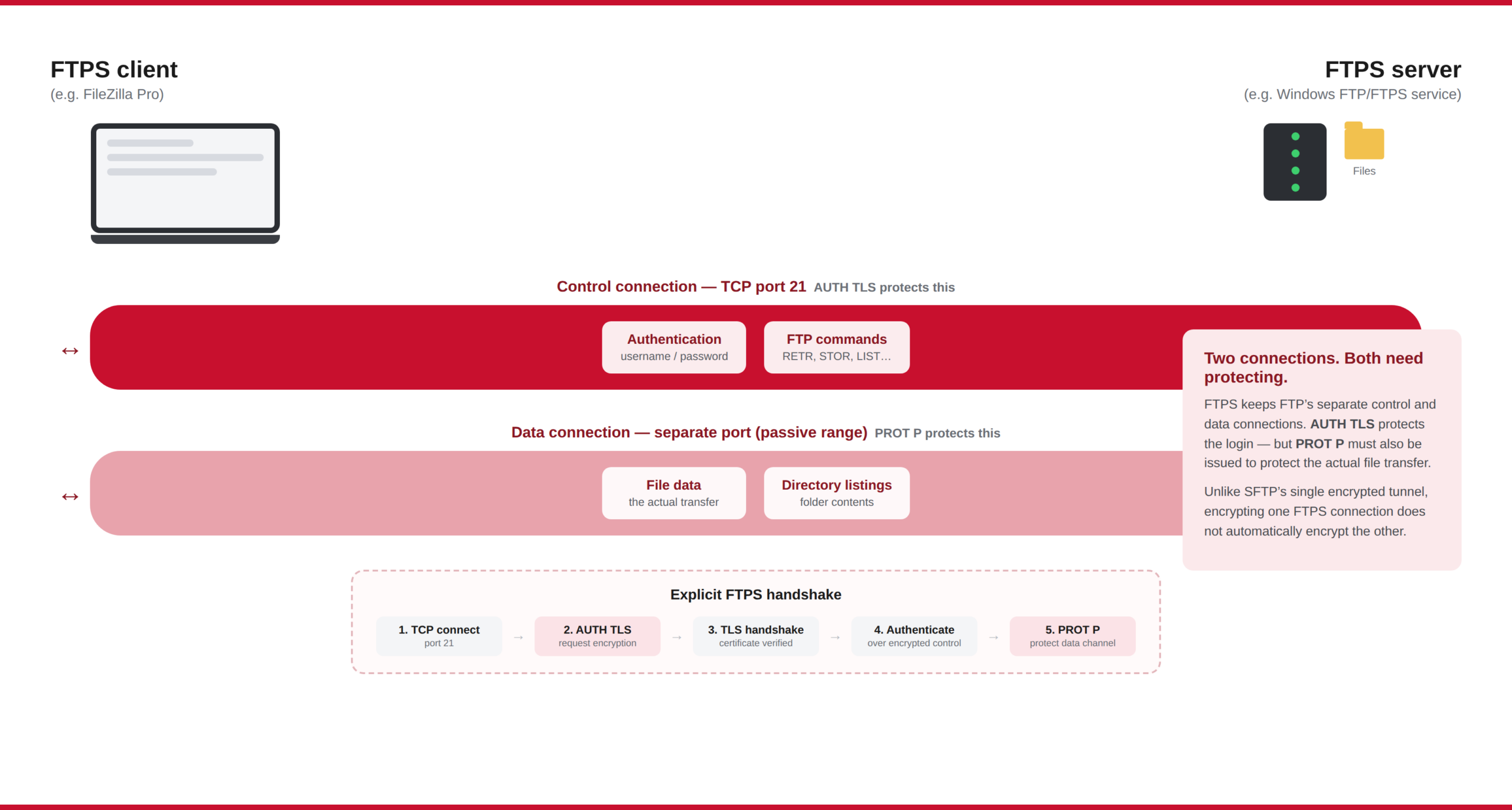
- PROT command: the client requests protection for the data channel as well — without this, file transfers themselves could go over an unencrypted data connection even though login credentials were protected.
- Data connection: FTP opens its usual separate data connection (active or passive mode) for directory listings and file transfers, now also TLS-protected.
That last point is worth calling out on its own.
Two connections — and two things to protect
Because FTPS inherits FTP’s control/data connection split, encrypting the login doesn’t automatically encrypt the file transfer. A client has to explicitly protect both:
AUTH TLSprotects the control connection — commands, replies, and credentials.PROT Pprotects the data connection — the actual file contents and directory listings.
A misconfigured FTPS setup that only does the first (sometimes seen with older or permissive server configurations) can leave file contents traveling in the clear even though the password didn’t. This is also why FTPS, like plain FTP, can need more firewall/NAT configuration than SFTP: passive-mode data connections typically require a configured port range to be open in addition to the control port, and that range now needs to carry TLS as well.
FTPS uses TLS certificates, not host keys
FTPS authentication of the server relies on the same X.509 certificate model used by HTTPS: the server presents a certificate, and the client checks it against a trusted certificate authority (or, for a self-hosted/internal server, against a certificate the administrator has explicitly trusted). Some FTPS setups also support client certificates, where the server verifies the client’s identity via a certificate rather than — or in addition to — a password.
This is a different trust model from SFTP, which relies on SSH host keys and doesn’t involve a certificate authority by default. Neither is inherently “more secure” — they’re just different ways of answering the same question: how do you know you’re really talking to the server you think you are?
FTP vs. FTPS vs. SFTP
| Feature | FTP | FTPS | SFTP |
|---|---|---|---|
| Protocol family | FTP | FTP | SSH |
| Encryption | No | TLS | Provided by SSH |
| Default port | 21 | 21 (explicit) / 990 (implicit, legacy) | 22 |
| Control and data | Separate connections | Separate connections, each needs its own TLS protection | Same SSH connection |
| Server identity verified via | N/A | X.509 TLS certificate | SSH host key |
| Typical authentication | Username/password | Username/password; client TLS certificates optional | Password, SSH public key, or other SSH methods |
| Firewall configuration | Control port + data connections | Control port + TLS-protected data connections | Usually one SSH port |
Note: this comparison reflects FileZilla Pro’s protocol support. If you’re using the free FileZilla client instead, see FileZilla’s supported protocols for what’s available there.
What you need to connect to an FTPS server
- The server’s hostname or IP address
- The FTPS port — normally 21 for explicit FTPS, 990 for legacy implicit FTPS, unless the administrator changed it
- A username and password (or a client certificate, if the server requires one)
- An FTPS-capable client such as FileZilla or FileZilla Pro
In FileZilla, open File > Site Manager, create a new site, and select FTP – File Transfer Protocol as the protocol, then set Encryption to Require explicit FTP over TLS (or the implicit option, if your server specifically requires it). Enter the host, port, and login details supplied by the server administrator.
Don’t click past an untrusted-certificate warning
Encryption alone doesn’t guarantee you’re talking to the right server. When an FTPS server’s certificate is self-signed, expired, or doesn’t match the hostname, your client will warn you before connecting. It can be tempting to click through that warning to get a transfer done — but doing so on an unfamiliar network defeats much of the point of using FTPS in the first place. For a server you manage yourself, either install a certificate from a trusted CA (a free option like Let’s Encrypt works for FTPS the same way it does for HTTPS) or explicitly trust the specific self-signed certificate once, through a verified channel — not by reflexively dismissing the warning every time it appears.
Common questions about FTPS
Is FTPS the same as SFTP?
No. FTPS is FTP secured with TLS and remains architecturally FTP. SFTP is a different protocol built on SSH. The two are not interchangeable, and a server that supports one doesn’t necessarily support the other.
Does FTPS use port 21 or port 990?
Modern explicit FTPS uses port 21, the same as plain FTP, and negotiates TLS after connecting. Port 990 is associated with older implicit FTPS, which is now considered legacy. Either port can technically be reconfigured by an administrator.
What’s the difference between explicit and implicit FTPS?
Explicit FTPS connects like plain FTP and then upgrades to TLS via the AUTH TLS command — this is the current standard (RFC 4217). Implicit FTPS encrypts from the first byte of the connection but predates the standard and isn’t formally specified; it’s supported mainly for compatibility with older systems.
Is FTPS secure?
FTPS can be secure when configured correctly: a valid, trusted certificate; both the control connection (AUTH TLS) and data connection (PROT P) protected; and current TLS versions rather than deprecated ones like TLS 1.0/1.1. A server that only encrypts the login and not the data transfer, or that’s still running an outdated TLS version, undermines much of the benefit.
Do I need FileZilla Pro to use FTPS?
No. FTPS is supported by the free FileZilla client, and on the server side, the free FileZilla Server also supports FTP and FTPS. FileZilla Pro Enterprise Server adds SFTP support on the server side, along with Active Directory integration, two-factor authentication, and centralized management for larger teams — but FTPS itself isn’t a paid-only feature on either end.
For a broader comparison, including FTP, FTPS, and SFTP, see FileZilla’s FTPS FAQ or FileZilla’s supported protocols: FTP, FTPS & SFTP.
Scaling Up? Meet FileZilla Pro Enterprise Server
For teams that have outgrown single-user file transfer, FileZilla Pro Enterprise Server adds SFTP alongside FTP/FTPS, plus Active Directory integration and centralized management across your whole organization — with no limit on the number of users.